Adobe: InDesign Basics

Place Colored Step Circles
Select the Ellipse Tool (
L).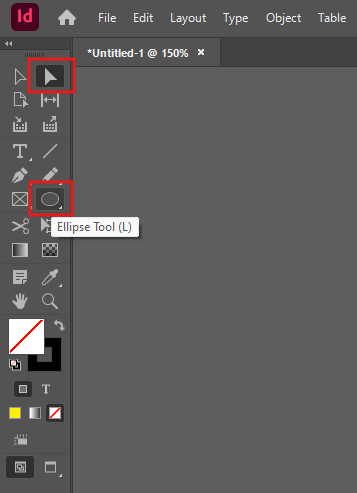
Select an area on the page for the Ellipse.
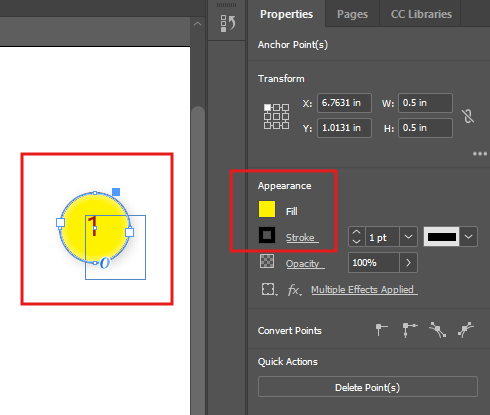
Ellipse Properties will appear in the Properties pane.
- Choose an appropriate Fill color.
- Choose an appropriate Stroke color.
Create a Text Box using the Type Tool (
T) and position the text over the Ellipse.Drop Shadow and other Effects can be added by selecting Object > Effects.
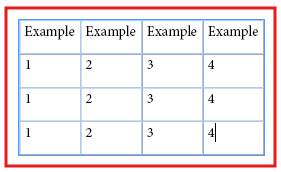
Create or Modify Table
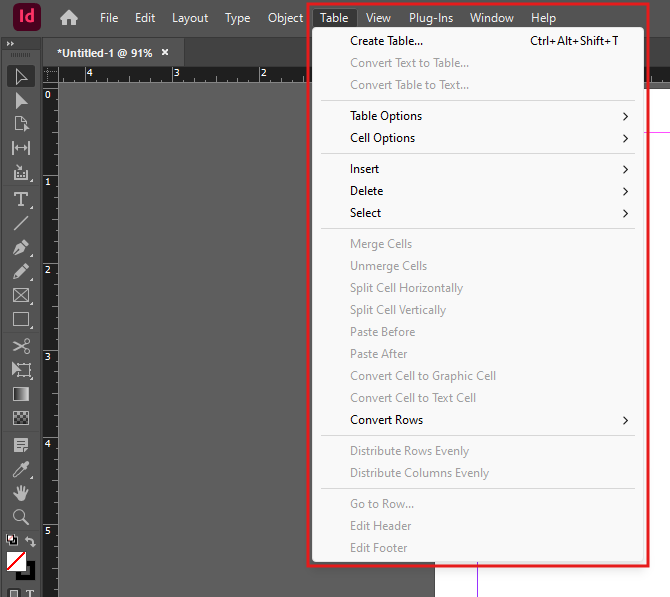
Select Table > Insert Table... or click on an existing Table.
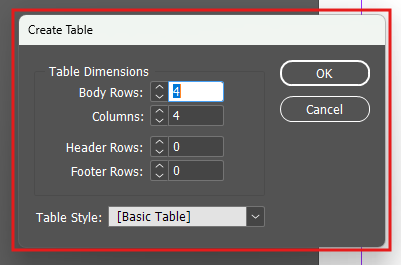
Modify the Table Dimensions.
Place the Table.
Edit or Modify Text
- Select Type to choose Text Properties or click on existing Text.
- Text Properties will appear in the Properties pane.
Additional advanced options are described here.
Table of Contents
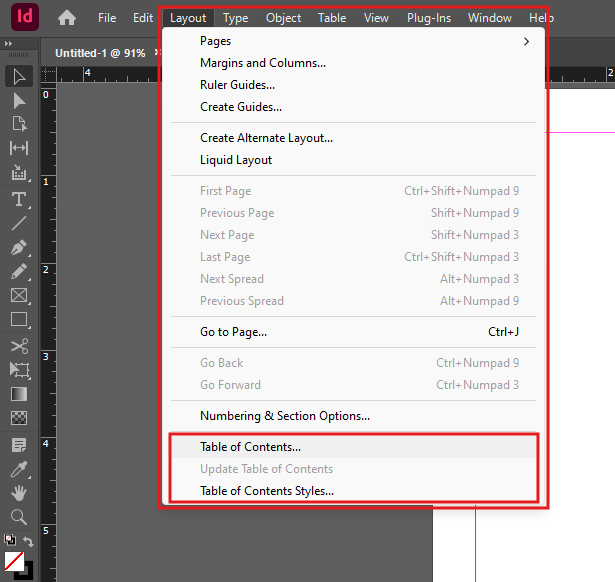
Select Layout > Table Of Contents Styles...
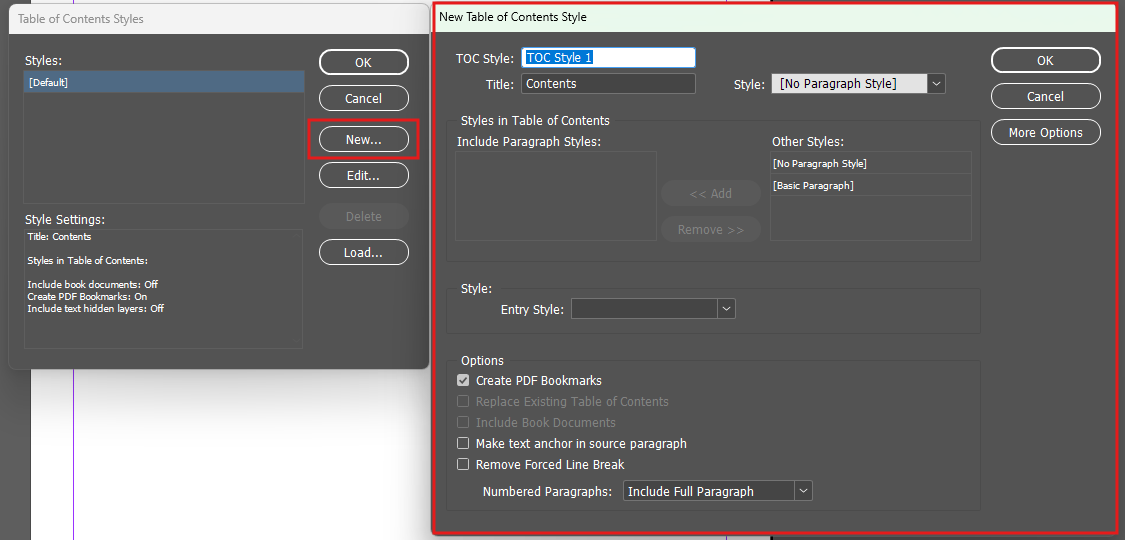
Click New or modify the Table Styles.
https://helpx.adobe.com/indesign/using/creating-table-contents.html
Key Bindings
- Default Zomm In
CRTL+. Lfor the Ellipse Tool.Ffor the Rectangle Frame Tool.Afor the Direction Selection Tool.